
As a contracted agent or broker with Clear Spring Health, one of the most valuable resources at your disposal is the Provider Search Tool. This online directory allows you to quickly verify whether a prospective client's preferred doctor or specialist is in the Clear Spring Health network or help them find a new in-network provider near their home.
Being able to answer the question confidently "Is my doctor in-network?" during a sales appointment or enrollment conversation builds trust and helps close enrollments. This guide will walk you through how to use the tool effectively.
👉 Access the tool here: providersearch.clearspringhealthcare.com/provider-search
What Is the Provider Search Tool?
The Clear Spring Health Provider Search Tool is a public-facing online directory of over 57,000 healthcare providers contracted within the Clear Spring Health network. It covers providers across the states where Clear Spring Health offers Medicare Advantage HMO and PPO plans, including Colorado, Georgia, and Illinois.
As an agent, you can use this tool to:
- ✅ Verify whether a client's current PCP or specialist is in-network
- ✅ Search for in-network providers near the client's home by specialty or location
- ✅ Reassure clients during enrollment conversations that they'll have access to quality care
- ✅ Demonstrate value by walking clients through the tool during appointments
When Should You Use This Tool?
Here are common scenarios where the Provider Search Tool becomes essential during your sales and enrollment process:
| Scenario | How the Tool Helps |
|---|---|
| Client asks, "Is my doctor in-network?" | Search by provider name or NPI to confirm network participation |
| Client needs to find a new PCP | Filter by specialty and ZIP code to present nearby options |
| Client is comparing plans | Show the client the breadth of the Clear Spring Health network in their area |
| The client has multiple specialists | Verify each provider individually to confirm full network coverage |
| Pre-appointment preparation | Look up the client's providers in advance, so you arrive with answers ready |
💡 Pro Tip: Before every sales appointment, ask your client for the names (or NPI numbers) of their current doctors. Look them up in the tool beforehand so you can address network questions immediately and confidently.
Step-by-Step: How to Use the Tool
Step 1: Open the Provider Search Page
Navigate to:
https://providersearch.clearspringhealthcare.com/provider-search
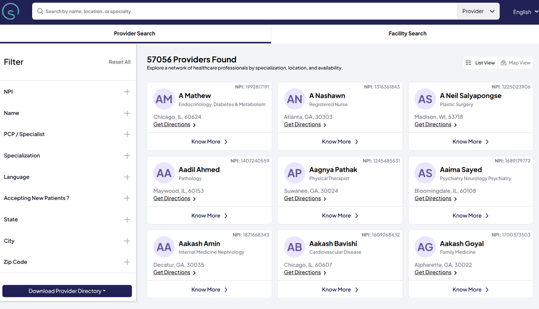
You'll see the full directory of 57,000+ providers. From here, you'll use filters to locate the specific provider(s) your client needs.
Step 2: Apply Filters to Find the Right Provider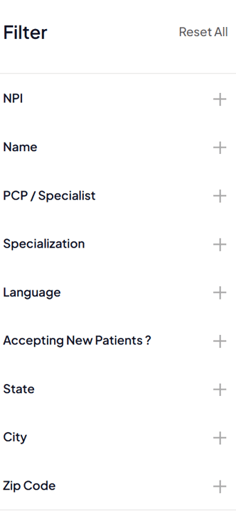
You can use the large search bar at the top of the page to find the provider of your choice. You can also use the "Filters" panel at the top of the page to narrow results by:
- NPI Number – If the client or their doctor's office has provided an NPI (National Provider Identifier), this is the most precise way to search
- Provider Name – Enter the client's doctor's name to check network status directly
- PCP/Specialist – Here you can choose between a PCP search and a Specialist Search
- Specialization - Further specify the type of provider your client needs (e.g., Cardiology, Endocrinology)
- Language - Find a provider that speaks the client's preferred language
- Accepting New Patients? - Find out if the Provider has any availability.
- Location Information – You can search by state, city, and zip code.
Step 2 (Alternative): Apply Filters to Find the Right Facility
If you select the Facility Search Tab at the top, you can use the search bar or "Filters" panel at the top of the page to search for facilities instead. You can narrow results by:
- Name - Enter the full or partial name of the facility (for example, “ABC Medical Center” or “Westside Imaging”). Using the name filter helps you quickly confirm whether a specific hospital or clinic your client prefers is in-network.
- Services Offered– You can begin typing the service you are looking for and then select from the selection of services the facility provides.
- Location Information – You can search by state, city, and zip code.
List View and Map View
The tool gives you two viewing options:
-
📋 List View – A scrollable list of provider cards. Best for quickly scanning names, NPI numbers, and locations when verifying multiple providers for a client.
-
🗺️ Map View – An interactive map showing provider locations. This is an excellent visual aid when sitting with a client — you can show them exactly where nearby providers are located relative to their home.
Agent Tip: When presenting to a client in person or on a screen share, Map View is a powerful visual that demonstrates the strength and convenience of the Clear Spring Health network in their area.

Step 4: Review Provider Details
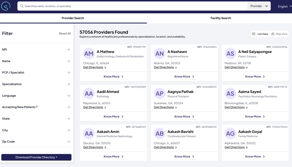
In the list view, you will see a collection of cards for the providers that met the filters in your search. You can click "Know More" to get additional details, such as:
- Provider Name
- NPI Number – The unique 10-digit national identifier (useful for cross-referencing)
- Specialization and Services
- Languages Spoken
To the right, on the Facilities Card
- Provider Name
- If They Are Accepting New Patients
- Location – City, State, and ZIP code
- Phone Number
- "Get Directions" – Opens Google Maps with the provider's location — handy if a client wants to see how far the office is from their home
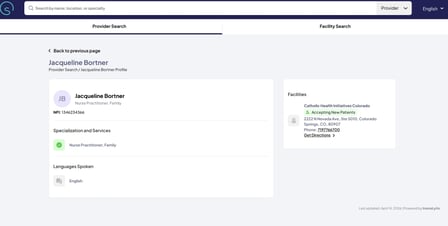
Always click "Know More" to confirm the full details before telling a client their provider is in-network.
Step 5: Navigate Through Results
Results are paginated (e.g., "Page 1 of 327"). Use the Next and Prev buttons at the bottom to browse through additional listings. If your initial search returns too many results, go back and add additional filters to narrow things down.
Best Practices for Agents & Brokers
| Practice Details | Details |
|---|---|
| Prepare before appointments | Ask clients for their doctors' names and NPIs ahead of time, and look them up before you meet. |
| Search by NPI when possible | NPI numbers are unique to each provider and give you the most accurate match — no confusion with common names |
| Use Map View during presentations. | Visually showing clients a map of nearby providers makes a strong impression and builds confidence in the plan. |
| Verify every specialist | Don't assume. Check each of the client's providers individually, especially specialists. |
| Bookmark the tool | Keep the Provider Search URL saved on your phone, tablet, or laptop so you can access it instantly during any appointment. |
| Document your findings | Note which providers you verified and when, in case the client has follow-up questions. |
Why This Matters for Your Sales Process
One of the biggest objections you'll hear from Medicare beneficiaries considering a plan switch is: "But will I be able to keep my doctor?" The Provider Search Tool puts the answer at your fingertips.
Being able to pull up the tool, verify a provider on the spot, and show the client a map of in-network options near their home demonstrates professionalism and builds the trust that leads to enrollments.