
Once you are designated Ready-to-Sell (RTS), EvolveNXT becomes your main workspace for managing your business with Clear Spring Health.
With EvolveNXT, you can track what happens before and after enrollment, such as confirming applications, checking commissions, ordering materials, and keeping your credentials up to date. You can even log into Sunfire directly from your EvolveNXT platform.
Think of EvolveNXT as your central hub for working with our plans.
🔏Start Here: Logging In
-
Enter the Email address that you used for the RTS process and enter your password.
-
Hint: You can click “Lost your password” to reset
-
When you log in, you will land on your Dashboard.
🔍What You Will See When You First Log In
After signing in, you will land on your Dashboard. Across the top of the dashboard, you may see tabs such as:
- Overview
- Enrollments
- Statements
The dashboard is designed to give you a quick view of your activity, alerts, and anything that may require attention. You may see reminders about credentials, certifications, or updates to your selling status. It is a good habit to review this page regularly so that nothing important is missed.
⚓Understanding the Main Navigation Menu
On the left side of the screen, you will see your main navigation menu. Your left-hand navigation menu in EvolveNXT may look slightly different depending on your role, permissions, or whether you are an individual broker or part of an agency.
For example, some users may see a menu that includes: 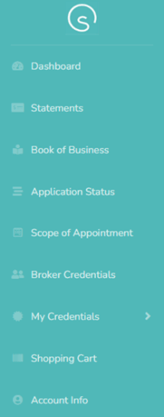
- Dashboard
- Statements
- Book of Business
- Application Status
- Scope of Appointment
- Broker Credentials
- My Credentials
- Shopping Cart
- Account Info
⚠️Important:
The Sunfire enrollment link is always located on the Dashboard under the Overview tab, regardless of how your left menu appears.
🗄️What Each Section Is Used For
💻Dashboard
Your Dashboard provides a high-level overview of your activity and status. You can access important information using the tabs across the top. The Overview tab provides your status and lists active credentials. Enrollments give you quick stats on your book of business, as well as enrollments and disenrollments for the month. Statements cover commission statements. All tabs allow you to click through for more details.
Checking the dashboard regularly helps prevent surprises that could impact your business.
Dashboard Overview
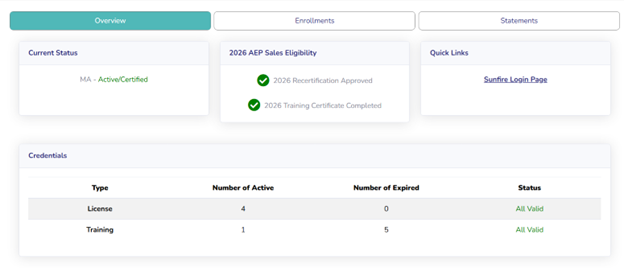
The Dashboard Overview tab shows your current status, eligibility, and licensing at a glance. Here, you can quickly confirm that your certifications and other required credentials are active and up to date. You may also see alerts or notices if anything is expiring soon or requires attention.
If there are any issues with your status that may affect your Ready-to-Sell (RTS) eligibility—such as a missing certification, an expired license, or an outstanding requirement—you will find it here. Checking the Overview tab regularly helps you address potential problems early, avoid interruptions to your ability to sell, and maintain continuous RTS status.
Plus, we now have a quick link to the Sunfire enrollment platform. You can find the Sunfire walk-through HERE.
Dashboard Enrollments
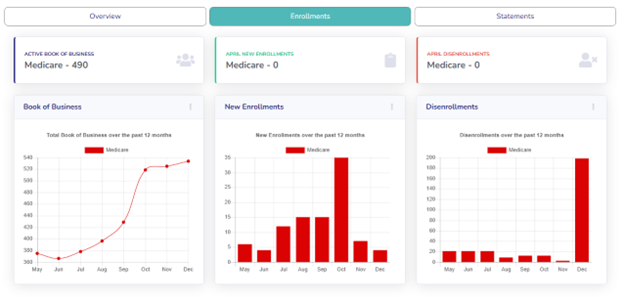
The Dashboard Enrollments tab shows the number of clients in your active book of business and your monthly totals of enrollments and disenrollments. This gives you a quick snapshot of how your business is growing or changing over time. Reviewing the Enrollments tab regularly helps you stay informed about the overall health of your book of business and supports better planning for renewals, service, and growth.
Dashboard Statements
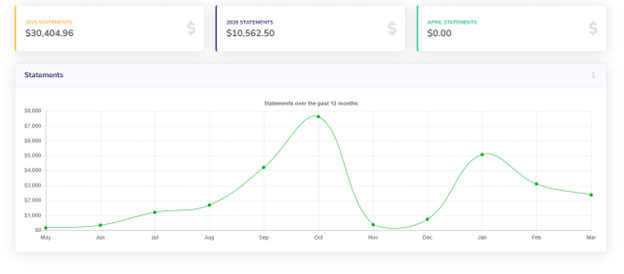
The Statements section shows your commission information. You can view statement periods by entering relevant dates. From the list, you can see credits and debits and download detailed reports in PDF or Excel.
Statements may include initial enrollments, renewals, disenrollments, and other adjustments. Reviewing your statements regularly helps you confirm payments and understand any changes.
📖Book of Business
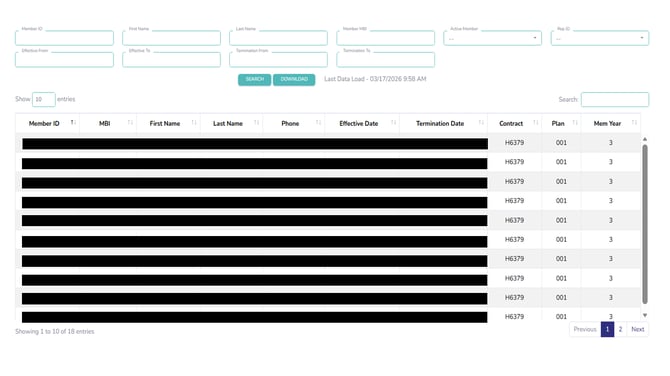
The Book of Business shows the members you are responsible for servicing. This is where you can confirm enrollments, view effective dates, and keep track of your client relationships.
This section is especially important for retention, renewals, and verifying that your enrollments were processed correctly. Enter identifying information in any of the fields and click search to find a client’s details.
✔️Application Status
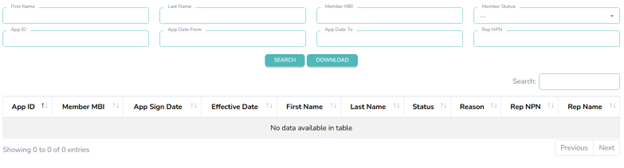
Application Status lets you confirm that an enrollment was received and see its current status. Here you may see the application ID, member name, signed date, effective date, current status, and your NPN. If a client asks whether their application went through, this is the first place to check.
🗂️Broker Credentials
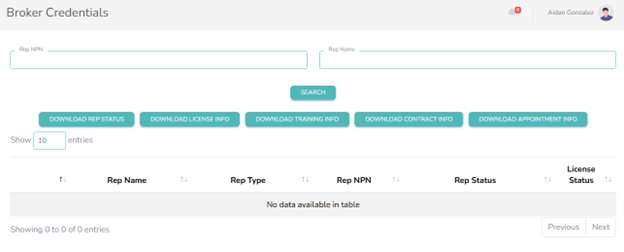
This section is for agencies to track their licensing, certifications, and eligibility to sell. You may see indicators such as your current AEP sales eligibility status. Keeping this information up to date is critical because missing or expired items can remove your Ready-to-Sell status.
🔑My Credentials
Under My Credentials, you will find two drop-down options labeled “My Certification Cases" and "Downline Credential".
Under My Certification Cases, you will see the status of your most current certifications. If you are an agency, you will see the status of your downline agents' certification under "Downline Credentials".
📫Shopping Cart
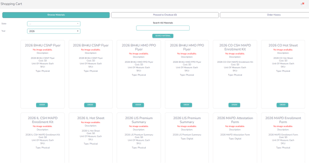
The Shopping Cart is where you can request approved materials, such as:
- Enrollment kits
- Flyers
- Plan brochures
- Plan highlights
- Required forms
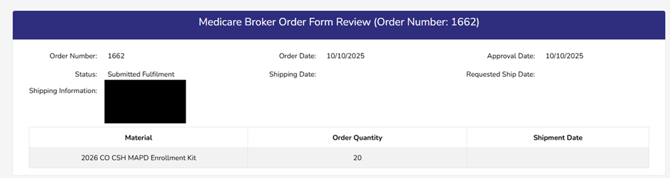
Using approved materials ensures accurate and compliant communication with beneficiaries. Once you have finished selecting the materials you want, you can check out using the shopping cart. You can even review past orders.
🏨Account Info
Your Account Info section stores your contact details, such as your phone number, email, and address. Keeping this information up to date ensures you receive important communications and prevents administrative issues. Any changes in contact information can be made here.
📆How EvolveNXT Fits into Your Daily Workflow
Most brokers use EvolveNXT to:
- Confirm applications were received
- Check their Book of Business
- Monitor credentials
- Review commissions
- Access approved materials
Even if enrollments are completed in Sunfire, EvolveNXT is where you manage and monitor your overall business with our organization. This is your central system of record for everything that happens before and after an enrollment, including verifying that applications were received, reviewing your Book of Business, tracking member effective dates, and confirming that changes have been processed correctly.
Within EvolveNXT, you can also keep an eye on your Ready-to-Sell status, maintain your licensing and certifications, review commission statements, and order approved marketing and enrollment materials. Using EvolveNXT consistently helps you see the full picture of your activity with Clear Spring Health, stay organized, and support your clients throughout their time on our plans—not just at the moment of enrollment.